
Web Building at UMW
  • Returning Users:
  • Sites@UMW Sign-In
  • |
  • Domain of One’s Own Sign-In
  • |
  • Get Support
  • Menu Menu

Website Building at UMW

Getting Started

  • Domain of One’s Own Overview
  • Before You Sign Up
  • Best Practices for Choosing a Domain Name
  • Getting to Know Your Web Space
  • I Set Up My Account, Now What?
  • Introduction to cPanel
  • Accounts & Passwords

Control Panel

  • Introduction to cPanel
  • Creating a Subdomain
  • Subdomains vs Subdirectories
  • Cleaning up Storage Space
  • Adding a Redirect
  • Adding a New Domain Name

Web Applications

  • Sitejet Builder: Getting Started
  • What is a Web Application?
  • Installing Applications with Installatron

Wordpress

  • Introduction to WordPress Overview
  • Installing WordPress
  • WordPress Editor
  • WordPress Settings
  • Posts and Pages
  • Categories, Tags, and Menus
  • Themes and Customizing Your Site
  • Classic vs Block Themes
  • Basic Privacy
  • Changing Your Display Name
  • Themes and Plugins – Recommendations
  • Uninstalling WordPress
  • Best Practices for Handling Media
  • Cloning a WordPress Installation
  • Creating Footnotes in WordPress
  • Adding a New User to a WordPress Site
  • Resetting your WordPress Password
  • Migrating Sites@UMW to DoOO
  • Feeds (RSS)

Additional Resources

  • Achieving Digital Accessibility on Domain of One’s Own and Sites@UMW 
  • Technical Details: What is the server set-up like?
  • Sites@UMW or Domain of One’s Own?
  • Troubleshooting
  • Accessible Web Design

Web Security

  • Accounts & Passwords
  • Securing Your Site with SSL

Leaving UMW Domains

  • Leaving Domain of One’s Own: Overview
  • Leaving Domain of One’s Own: The Practical Steps

Omeka

  • Omeka Guide
  • Troubleshooting Omeka
View Categories

Basic Privacy

WordPress is a platform intended to allow you to share your thoughts and ideas freely and easily with the world. However, there are options to publish to a more limited audience.

The first way is to limit who can find your website. That is done by keeping search engines, like Google, from seeing (known as indexing) your site.

To do this, we’ll start at the Dashboard.

Navigate to Settings > Reading.
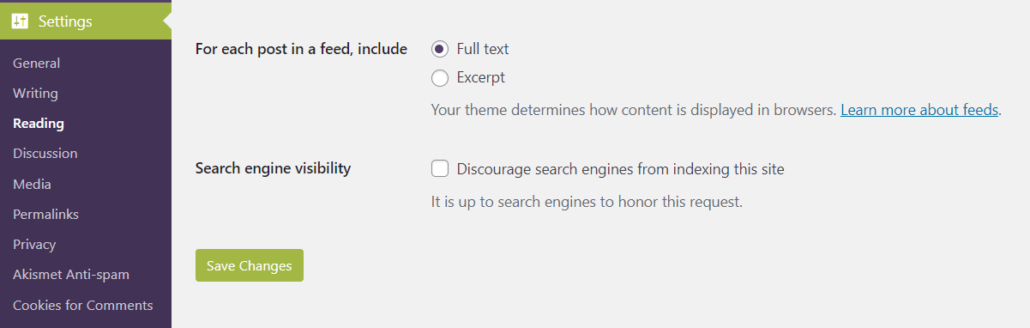
A screenshot of search engine visibility settings in the UMW Blogs dashboard located on the bottom of the Reading Settings section.

Normally the box next to Search Engine Visibility is unchecked. If you decide to check the box, it will “discourage search engines from indexing this site.” It will depend on the search engine to honor your “request”. Some search engines will simply ignore it. Obviously, this is not a sure-fire way of keeping your blog private.

You also have options on individual posts to keep them private, so that only people who are logged in to your site can view a given post. You can also password protect posts with a password you supply. Go to the Post settings menu when editing your post, then click on “Public” next to the Visibility setting. All posts are public by default, to change that choose the Private radio button to keep a post hidden behind the login or choose the Password protected button and then type in the password you wish to use. Then be sure you click the Update button to save your post with the new settings.

The password field shows up once you check the Password Protected option.

Updated by Haley Gosman 10/24/24

Powered by BetterDocs

University of Mary Washington logo

Web Building at UMW

About

Terms of Service

Themes and Plugins – Recommendations Leaving Domain of One’s Own: The Practical Steps
Scroll to top