
One aspect of Domain of One’s Own that users may find a bit complicated at first is understanding the different accounts and associated passwords that you may use in the project. This article outlines the types of accounts that you are likely to have, what they are for, and how you go about resetting passwords on each of them.
Signing Up and Logging In to Your Domain of One’s Own Account #
Signing Up #
When signing up for Domain of One’s Own (DoOO) you must have an active NetID. This account is used for many applications and tools across campus including e-mail, Canvas, and myUMW.
Logging In #
Once you’ve created your account you now have access to your slice of the Domain of One’s Own web server. The cPanel (dashboard) is where you’ll have access to all the hosting features including installing applications, accessing installed applications, or setting up FTP. To login to your account go to:
- The umw.domains homepage
- Select the “Domain of One’s Own Sign-In” button
- When prompted, enter your NetID and password
Your Application Administrator Accounts #
Every time you install a new application or program, in cPanel, an Administrator Account for that application will be created. For most applications you’ll want to make note of these settings as you’ll need to go to the applications login page to get to the backend of the application. The exception for this is WordPress. Please see below for details about about best practices for accessing a WordPress site on Domain of One’s Own.
Managing and resetting the password for an account will vary from application to application. If you’ve used Installatron (in cPanel) to install the application (this is the way the majority of users install applications) you can review the application credentials by:
- Login to your DoOO account and access your cPanel.
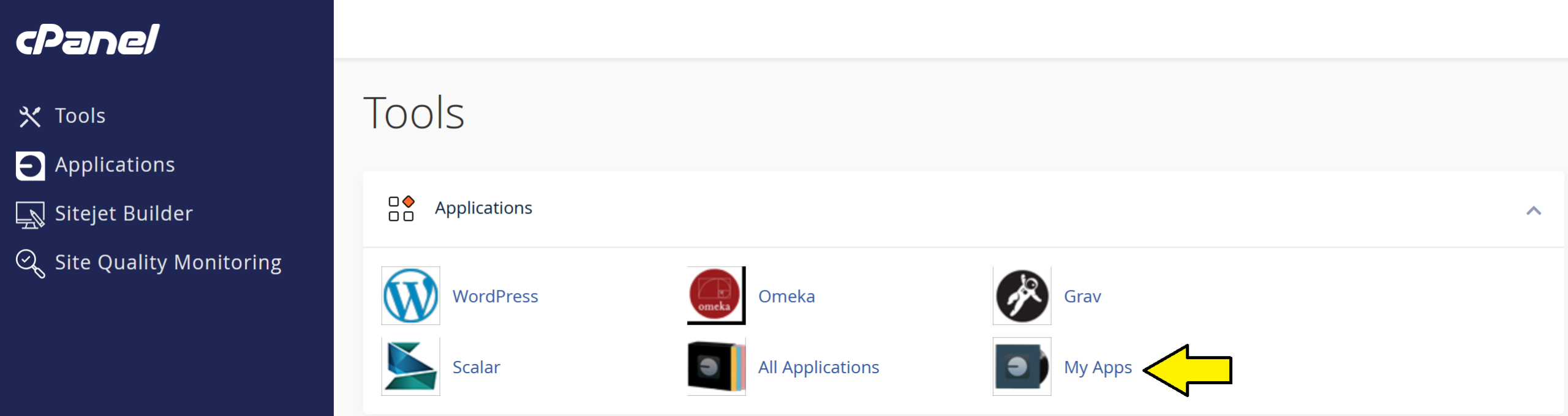
- Find the application you installed under My Apps.
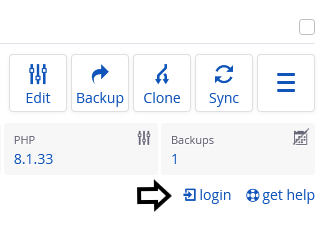
- Click the Edit button (this looks like a blue wrench).
- Scroll down to find the Administrator Username and Password.
In addition, most applications should have some kind of password reset link on the login page.
Accessing the Dashboard for a WordPress Site on Your DoOO Account #
Anytime you install a new application in your account that application will have it’s own set of credentials unrelated to your Net ID and password. WordPress does the same thing, but this application comes with a feature that will allow you to automatically log you into your account so you don’t need to know these separate set of credentials. The easiest way to login to a WordPress site is to do the following:
- Login to your DoOO account
- On your dashboard (cPanel) click on my My Apps from in the Applications section of your dashboard.
- Find the WordPress site you would like login to and and click the login link on the right hand side
- You should be automatically logged into your WordPress dashboard.
Please note if you are logging into a WordPress application that is not on your Domain of Own’s account you’ll need to login directly to the application. We have created a WordPress-specific guide if you need assistance resetting a user account for a WordPress application.
cPanel Login Screen #
Sometimes users will run into the cPanel login screen. This happens when a user logouts from inside cPanel (dashboard) or when a credential mismatch that happens. The login screen looks like this:

While there is a separate set of credentials for your cPanel you don’t need these to get into your account. If you encounter this screen the best thing to do is go back to the landing page for Domain of One’s Own and login again, following the Logging In directions above.
Other Types of Accounts #
In addition to the account types outlined above, there are a few other kinds of accounts you may have as part of DoOO:
- Email: If you set up an email address at your domain, you will have an account associated with this.
- FTP: Your account comes with FTP capabilities and ability to create FTP accounts.
- Application User Accounts: In addition to the Administrator Account that you set up when installing an application, most applications will also let you set up user accounts.
Reviewed by Abby Firestone 06/22/26
